


The best portable monitor for MacBook Pro in 2026 is one that connects with a single USB-C cable, matches your laptop's resolution and color profile, and stays light enough to live in your bag. For most users, that means a 15.6 to 16.1-inch panel at 1080p or 2.5K, with USB-C Power Delivery and a built-in kickstand.
Apple Silicon MacBook Pros (M1, M2, M3, and M4) all support DisplayPort over USB-C through Thunderbolt 4, so a modern portable monitor can run as a true second screen with no adapters and no dongles. The hard part is choosing the right size, resolution, and refresh rate for how you actually work. This guide walks through the five decisions that matter, then matches each one to a clear "best for" Arzopa pick so you can buy with confidence.
If you are new to the category, the portable monitor guide for first-time buyers is a useful primer before going deeper here.
Key Takeaways
- One USB-C cable is the goal. Every Apple Silicon MacBook Pro supports DisplayPort Alt Mode over USB-C and Thunderbolt 4, so a compatible monitor handles video and power on a single cable.
- Size is the most visible decision. 14 inches travels best, 15.6 to 16.1 inches is the everyday sweet spot for most MacBooks, and 17.3 inches gives you a real desk upgrade.
- 2.5K is the meaningful step up from 1080p. Sharper text and more vertical space matter more than 4K on a portable, which the macOS scaler often cannot fully exploit on a 16-inch panel.
- Refresh rate is mostly for play. 60Hz is fine for work. 144Hz or 180Hz only pays off if you connect a console, handheld, or external GPU.
- Color profile matters for creators. Look for 100% sRGB at minimum; step up to DCI-P3 or OLED if you edit photos, video, or design work on the road.

Step 1: Check Which MacBook Pro You Own
The right portable monitor setup depends on your MacBook Pro model. Most newer MacBook Pro models use USB-C or Thunderbolt ports, but their external display support is not exactly the same.
| MacBook Pro Model | Port / Display Support | Best Way to Connect an Arzopa Portable Monitor | Notes |
|---|---|---|---|
|
M3 / M4 / M5 MacBook Pro 14-inch and 16-inch |
Thunderbolt 4 or Thunderbolt 5 depending on the chip and model, DisplayPort Alt Mode, support for one or more external displays depending on the chip | Use one USB-C cable for video and power | Best option for a clean single-cable setup with Arzopa portable monitors. M5 models also support USB-C/Thunderbolt video output, while the exact number of external displays depends on the chip tier. |
| M1 / M2 MacBook Pro | Thunderbolt 3 or Thunderbolt 4, DisplayPort Alt Mode | Use one USB-C cable for video and power | Base M1 and M2 chips officially support one external display through the laptop port. Pro, Max, and Ultra chips support multiple external displays. |
| Intel MacBook Pro 2016–2019 |
Thunderbolt 3 over USB-C, DisplayPort Alt Mode | Use a USB-C cable if your model supports video output through USB-C | Most current portable monitors work well. Check your exact MacBook Pro port version if unsure. |
| Older Intel MacBook Pro with HDMI | HDMI output | Use HDMI for video and a separate USB-C charger for power | This setup is not single-cable, but compatibility is usually straightforward. |
M3, M4, and M5 MacBook Pro models. These models use Thunderbolt / USB-C ports with DisplayPort video output, making them well suited for a single-cable portable monitor setup. With any current Arzopa portable monitor, one USB-C cable can usually handle both video and power. The exact number of supported external displays depends on the chip tier and MacBook Pro model. Apple notes that MacBook Pro models with the M5 chip can support up to two external displays simultaneously with the built-in display, depending on resolution and refresh rate.
M1 and M2 MacBook Pro. Same one-cable behavior over Thunderbolt 3 or 4. Base M1 and M2 chips officially support one external display through the laptop ports; M1/M2 Pro, Max, and Ultra support multiple.
Intel-based MacBook Pro (2016 to 2019). Thunderbolt 3 over USB-C with DisplayPort Alt Mode. The same modern portable monitors still work cleanly; just confirm the port version on your model.
Older Intel MacBook Pro with HDMI. Use the monitor's HDMI input plus a separate USB-C charger for power. You lose the one-cable convenience, but compatibility is not a problem.
The short version: if your MacBook Pro is from 2020 or later, you are looking at a clean USB-C single-cable workflow with any current Arzopa monitor.
Step 2: Choose the Right Screen Size
Screen size changes how the monitor fits in your bag, how usable it feels on a hotel desk, and how cleanly it pairs visually with your MacBook.
| Size | Best for | Typical weight | Pairs well with |
|---|---|---|---|
| 13.3 inches | Ultraportable creators | About 1.0 lb | 13-inch MacBook Pro and MacBook Air |
| 14 inches | Travel and daily commute | 1.1 to 1.4 lb | 14-inch MacBook Pro |
| 15.6 inches | Everyday work and study | 1.5 to 1.8 lb | 14-inch and 16-inch MacBook Pro |
| 16.1 inches | Hybrid work and play | 1.7 to 2.0 lb | 16-inch MacBook Pro |
| 17.3 inches | Spreadsheets and split-screen | 2.2 to 2.6 lb | 16-inch MacBook Pro on a static desk |
A few practical notes for MacBook Pro users:
- A 16-inch MacBook Pro looks most natural next to a 16.1-inch portable monitor. The bezels and visual height match closely.
- If you live out of a backpack, weight under 2 pounds matters more than the extra inch of screen real estate.
Step 3: Pick a Resolution That Matches Your Workload
Resolution decides how sharp text looks, how much you can fit on screen, and how comfortable the monitor feels for long sessions on a MacBook.

1080p (Full HD). The value default for portable monitors in 2026. Still looks clean on screens up to 16 inches, runs cool, and barely touches your MacBook's battery. A strong fit for email, docs, reference material, and casual gaming.
2.5K (QHD, 2560 x 1440). The most meaningful upgrade for MacBook Pro users. Sharper text matches the Retina display feel of your laptop, and the extra vertical space helps with code, spreadsheets, and side-by-side documents.
4K (UHD). Rarely worth it on a portable. macOS often scales 4K content on a 16-inch panel, which can reduce the perceived sharpness gain and shorten battery life. 4K makes more sense on a 27-inch desk monitor than a 16-inch travel screen.
Choose 1080p if you want longer battery life and lower cost. Choose 2.5K if you read code, edit spreadsheets, or want text that visually matches your MacBook's Retina panel.
Step 4: Decide Between IPS and OLED
Panel type drives color, contrast, and viewing angles. For MacBook Pro users, this is largely a creator question.
IPS is the right default for most buyers. Strong color accuracy, wide viewing angles, and reliable response times. Works well for everything from video calls to casual gaming.
OLED is the premium choice for creators and movie watchers. Per-pixel contrast, deep blacks, and rich color that come closer to the look of a MacBook Pro's mini-LED display.
For most MacBook Pro buyers, the answer is IPS. OLED is the right upgrade if color and contrast are the main reason you are buying.
Step 5: Match Refresh Rate to How You Actually Work
Refresh rate is the most overhyped spec in portable monitors, and it matters less for MacBook Pro than it does for a gaming PC.
- 60Hz is enough for nearly all macOS productivity, video calls, streaming, and casual play.
- 120Hz is the smooth-feeling baseline for current consoles in performance mode if you also connect a PS5 or Xbox.
- 144Hz adds visible motion benefits for handhelds, the Steam Deck, and competitive gaming.
- 180Hz with 2.5K is the premium tier for portable gaming.
A practical note: macOS does not have native variable refresh rate support on most portable monitors, so the higher refresh rate is most useful for an external console or handheld rather than for your MacBook itself.
Step 6: Confirm Your USB-C and HDMI Setup
This is where most buying mistakes happen. The right port on the box does not guarantee the right cable in your bag.
USB-C with DisplayPort Alt Mode. The cleanest MacBook Pro setup. One cable handles video, audio, and power. Every Apple Silicon MacBook Pro supports this through Thunderbolt 4. Confirm your portable monitor lists "USB-C DP Alt Mode" or "video over USB-C" and you are done.
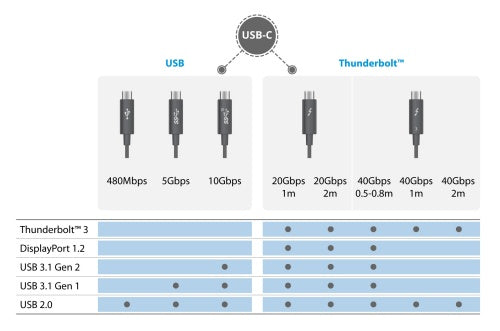
USB-C Power Delivery. Look for monitors that accept and pass through 60W or more of power if you want the portable monitor to charge your 14-inch MacBook Pro at full speed. The 16-inch MacBook Pro draws more power, so you may still want to plug your MagSafe charger directly into the Mac for heavy workloads.

HDMI and Mini HDMI. Useful when you also want to connect a Nintendo Switch dock, a PS5, or an older laptop. You will need a separate USB-C power input on the monitor when you use HDMI, since consoles do not deliver power back through HDMI.
Cable quality. A bad USB-C cable can cause flicker, dim images, or refresh-rate drops. If your monitor came with a certified cable, use it. If you swap cables, look for ones rated for USB-C DisplayPort Alt Mode.
If you are also choosing a portable monitor for your laptop at the office, the same cable rules apply.
Step 7: Look at Portability, Build, and Color
A portable monitor lives in a bag and on hotel desks. The spec sheet only tells you part of the story.
Chassis. Aluminum or magnesium feels closer to MacBook build quality and shrugs off daily travel better than plastic.
Profile. Anything under 0.5 inches thick packs cleanly into a laptop sleeve next to your 14-inch or 16-inch MacBook Pro.
Built-in kickstand or smart cover. Far more reliable than ad-hoc stands. Check that it supports both landscape and portrait orientation if you want to read code or long documents vertically.
Brightness. 250 to 300 nits is comfortable for indoor use. Step up to 400 to 500 nits if you work near windows or outdoors. The 500-nit panel on the Arzopa Z1RC is built for that brighter scenario, and OLED panels like the A3C Pro hit 400 nits with deeper contrast.
Color coverage. 100% sRGB is the right baseline for most MacBook Pro users. Photo, video, and design pros should look for stronger DCI-P3 coverage and trustworthy out-of-box calibration so the second screen matches the MacBook's color profile.
If you travel often, the Arzopa accessories collection covers sleeves, cables, and chargers sized for portable monitors specifically.
Best Arzopa Portable Monitor for MacBook by Buyer Type
This is where the buying framework turns into a clear pick. Every recommendation below works with any current Apple Silicon MacBook Pro over a single USB-C cable.
| Best for | Recommendation | Why it fits MacBook Pro |
|---|---|---|
| Everyday travel and study | Arzopa A1 | 15.6-inch 1080p, light, balanced for 14-inch and 16-inch MacBooks |
| Ultralight commuters | Arzopa A1S | 14-inch, slim, matches the 14-inch MacBook Pro footprint |
| Larger workspace | Arzopa A1M | 17.3-inch, ideal for spreadsheets and split-screen work |
| Sharper text and 16:10 productivity | Arzopa Z1RC | 2.5K, 500 nits, more vertical space for code and docs |
| Color-comfortable hybrid work | Arzopa Z1C | 16.1-inch 100% sRGB IPS, calm color match for MacBook |
| Hybrid work and gaming | Arzopa Z1FC | 16.1-inch 144Hz, smoother for handhelds and consoles |
| Premium portable gaming | Arzopa Z3FC | 2.5K 180Hz with FreeSync, brighter panel for fast play |
| Color-critical creators | Arzopa A3C Pro | 13.3-inch OLED, deep contrast, ultra-thin chassis |
For Office Workers Who Want a Bigger MacBook Pro Workspace
If your MacBook Pro mostly stays on a desk, weight should not be the first thing you worry about. What matters more is screen size, readability, and how much space you gain for daily work. For office users who spend the day switching between email, spreadsheets, dashboards, documents, and browser tabs, the Arzopa A1M is the strongest fit.

Its 17.3-inch screen gives you noticeably more room than a typical compact portable monitor, which makes it easier to keep a spreadsheet open on one screen while using your MacBook Pro for calls, notes, or research. This is especially useful for finance, operations, marketing, and admin work where you need to compare information side by side.
If you want a smaller and more balanced desk setup, the Arzopa A1 is also a safe choice. It gives you a simple 15.6-inch 1080p second screen without taking up too much room, making it a practical option for home offices, shared desks, and study spaces.
For Freelancers, Consultants, and Business Travelers
If you often work from cafés, hotels, client offices, coworking spaces, or airport lounges, portability matters more than maximum screen size. In this case, the best portable monitor for MacBook Pro should be easy to pack, quick to set up, and light enough to carry with your laptop every day.
The Arzopa A1S is the better fit for this type of user. Its 14-inch size pairs naturally with a 14-inch MacBook Pro, so your travel setup feels balanced rather than bulky. It is especially useful for freelancers and consultants who need to review documents, manage client messages, join video calls, or work on presentations while away from a full desk setup.
For Developers, Writers, and Productivity-Focused MacBook Users
Developers, writers, researchers, and analysts usually care less about flashy refresh rates and more about text clarity, vertical space, and long-session comfort. If you spend hours reading code, editing documents, comparing references, or managing multiple windows, the Arzopa Z1RC is the most practical upgrade.
The 2.5K resolution makes text look sharper than a standard 1080p portable monitor, while the 16:10 layout gives you more vertical room for code, long articles, Notion pages, spreadsheets, and documents. The 500-nit brightness also helps if you work near windows, in bright rooms, or in changing lighting conditions.
For MacBook Pro users who feel cramped on a single laptop screen, the Z1RC is the model that feels most like a productivity extension rather than just an extra display.
For Designers and Color-Sensitive Creative Work
If your work involves brand visuals, product images, social content, light photo editing, or design review, color consistency becomes more important. You may not always need a full studio monitor, but you do need a portable screen that makes colors feel stable and comfortable next to your MacBook Pro.
The Arzopa Z1C is a strong choice for mixed creative work because its 16.1-inch 100% sRGB IPS panel gives you a reliable color space for everyday design review, content work, and visual planning. It is a good fit for marketers, creators, e-commerce teams, and designers who need a second screen that does not make colors look wildly different from the MacBook display.

For Photographers and Creators Working Indoors or Outdoors
Photographers and video creators often need a portable monitor for quick previews, client review, or checking composition on location. In this case, brightness, contrast, and color confidence matter more than simply choosing the largest screen.
For indoor editing, image review, and color-rich previews, the Arzopa A3C Pro OLED is the most visually striking option. Its OLED panel gives photos and videos stronger contrast, deeper blacks, and a more premium viewing experience, which helps when reviewing creative work with clients or checking visual details.
For brighter rooms or semi-outdoor work, the Arzopa Z1RC may be the more practical choice because its 500-nit brightness helps visibility in stronger ambient light. It also gives photographers and creators a sharper 2.5K workspace for reviewing images, managing folders, and working with editing tools next to a MacBook Pro.
For Students and Everyday MacBook Pro Users
Students usually need a second screen for reading, writing, online classes, research, note-taking, and light entertainment. The best choice should be affordable, simple, and easy to carry between dorms, libraries, classrooms, and home.
The Arzopa A1 is the most straightforward option here. It gives students a practical 15.6-inch second screen for essays, lecture notes, PDFs, browser research, and video calls. It is large enough to make multitasking easier, but not so large that it becomes awkward to move around.
If the setup needs to stay as light as possible, the Arzopa A1S is better for students who carry their MacBook Pro every day and want a compact second screen that fits easily into a backpack.
For MacBook Pro Users Who Also Game
Many MacBook Pro users also connect a handheld console, gaming laptop, or mini PC to the same portable monitor. If you want one screen for work during the day and smoother gaming after hours, refresh rate becomes more important.
The Arzopa Z1FC is a good hybrid choice because its 144Hz refresh rate makes motion feel smoother than a standard 60Hz display, while still working well as a second screen for everyday productivity. It is a practical pick if you want one portable monitor for portable screen without giving up sharpness.
Which One Should You Choose?
If you only want a simple second screen for daily MacBook Pro work, choose the Arzopa A1. If you travel often, choose the A1S. If you want the largest workspace, choose the A1M. If you care about sharper text and productivity, choose the Z1RC. If you want stable everyday color, choose the Z1C. If you want a work-and-play monitor, choose the Z1FC. If gaming performance matters most, choose the Z3FC. If contrast and rich color are your priority, choose the A3C Pro OLED.
If you still want to compare every option side by side, browse the full Arzopa portable monitor lineup to find the screen size, resolution, refresh rate, and panel type that best fits your MacBook Pro workflow.
If you still want to browse, the full Arzopa portable monitors collection shows every model side by side.
A 6-Step Pre-Purchase Checklist for MacBook Pro Users
Before you buy, walk through this short list:
- Confirm your MacBook Pro model and Thunderbolt or USB-C generation.
- Pick a screen size that matches your bag and your MacBook footprint.
- Decide between 1080p, 2.5K, or OLED based on how you read and edit.
- Set a refresh rate based on whether you also plug in a console or handheld.
- Verify USB-C DP Alt Mode and check the included cable for video support.
- Compare two or three Arzopa models that fit, then pick the cleanest match to your scenario.
Final Word
The best portable monitor for MacBook Pro is the one that disappears into your bag, plugs in with one cable, and matches how you actually work. For most MacBook Pro users, that is a 15.6 to 16.1-inch IPS panel at 1080p or 2.5K. Creators and gamers should add OLED or high refresh into the decision.
If you are ready to compare options side by side, the full Arzopa portable monitors collection is the next step. Pair it with the accessories and your MacBook Pro becomes a real dual-screen setup almost anywhere.
FAQs
Will any portable monitor work with my MacBook Pro?
Most current portable monitors work with a MacBook Pro through USB-C DisplayPort Alt Mode. Every Apple Silicon MacBook Pro, from M1 through M4, supports this. Older Intel MacBook Pro models work too, though you may need an HDMI cable plus a separate USB-C charger.
Can I run a 4K portable monitor on a MacBook Pro?
Yes, but 2.5K is usually the better real-world choice. macOS scaling on a 16-inch panel can reduce the visible benefit of 4K, and battery drain is higher. 2.5K delivers sharper text without the tradeoffs.
How many external displays can my MacBook Pro run?
A base M1 or M2 MacBook Pro supports one external display through its ports. M1 Pro and newer chips support two or more. M3 and M4 base models added support for a second external display when the lid is closed. Always check Apple's specs page for your exact model.
Can the portable monitor charge my MacBook Pro?
Many Arzopa portable monitors support USB-C Power Delivery pass-through, which can keep a 14-inch MacBook Pro topped up at moderate workloads. The 16-inch MacBook Pro draws more power under heavy use, so plug your MagSafe charger directly into the Mac for video editing or sustained loads.
Do I need Thunderbolt, or is USB-C enough?
USB-C with DisplayPort Alt Mode is enough for portable monitors. Thunderbolt 4 ports on a MacBook Pro are USB-C compatible, so you do not need a Thunderbolt-specific monitor.
Is a 144Hz portable monitor worth it for a MacBook Pro?
Only if you also connect a console, handheld, or external GPU. Most macOS work runs comfortably at 60Hz, so a 144Hz or 180Hz panel is more useful as a shared screen for play.


